Showing posts with label Tidwell Middle School. Show all posts

Tuesday, April 20, 2021

Spring Bingo Challenge: Highlighting the Heroes


The amount of technology available to teachers can feel overwhelming. It seems like a new tool is released each week, making it hard for anyone -- let alone the busy teacher -- to keep up. But when it boils down, we know that technology itself isn’t necessarily innovative or meaningful on its own. Rather, we need teachers who intentionally implement that technology in their lessons and classrooms for the most impactful learning to happen. It's also true that teachers need time with tech tools to explore and implement, to try and try again.

In an effort to help teachers sift through the barrage of technology tools and templates available to them, NISD's Instructional Technology team hosts an annual Spring Bingo Challenge (happening in 2021 from April 1-30). Throughout this time teachers, K-12 and throughout the district are challenged with a fun way to explore instructional technology tools (new and old) at their own pace and when it makes sense for them.

A major benefit to this challenge happening during the Spring semester is that school is still in session. Meaning, instead of bookmarking a bunch of exciting ideas during a Summer PD that we someday hope to use (we’ve all been this person), educators are able to implement their ideas with students in the moment, as they learn, and when they have the support of their team and instructional technologist should they need it. After all, there is research enough to support the fact that effective job-embedded professional development can have a positive impact on teacher practice. However, between breaks, benchmarks, standardized tests, and end-of-year celebrations it shouldn't come as a surprise that the Spring semester is also a wildly busy time of year for teachers.


And yet...


At the time of writing this, we are already halfway through this year's challenge and well into the Spring semester. Teachers are asked, as a part of the challenge, to share their learning on Twitter using the hashtag #NISDITBingo.


Teachers have too much on their plates.

They are teaching in a pandemic.

They are tripping over their to-do lists.


And yet, that hashtag is filled with teacher heroes.


#NISDITBingo is filled with dedicated educators who are committed to prioritizing their professional growth for the sake of their students. It's filled with those who are courageous enough to try something new, and who are determined enough to try it now -- today -- when it will impact these learners. That hashtag is filled with teachers who are learning by doing and who are sharing their successes.


The thing is -- change is hard. Pushing yourself to learn something new, especially while those around you talk about things coming to an end, is hard. So, yes. These teachers are heroes who deserve to be celebrated.


Highlighting the Heroes

Below are only a few "hero highlights" from the Spring Bingo Challenge. See all of the shared successes at #NISDITBingo.


Engaging Hooks with "Mystery Reveals" 

As educators, we know the importance of grasping our learners early on in a lesson or unit. Creating a little mystery around a topic is a great way to get hook students and get them excited about their learning. When teaching her students how to compare fractions, Mrs. Kemper used a “Mystery Reveal” activity in Seesaw where students used a magnifying glass to reveal the fractions as they learn and work to solve the problems.


If you don’t use Seesaw, don’t sweat it! Mrs. Herrera used a similar Jamboard template to engage her students in problem-solving and to review the math concepts they were working on.


Problem-Solving and Communication: Flipgrid

Mrs. Robbins creatively combined a Google document and QR codes with Flipgrid, a platform for video responses complete with a whiteboard. She cleverly created a problem-solving “flip escape”. For this task, students had to solve each math problem, scan the cooresponding QR code, and then entering a code word so they could share how they solved each problem in Flipgrid before they could unlock the next one.


Not only did she design an engaging, gamified learning experience for her students, but by integrating Flipgrid at each step, students were empowered with a voice and recognized for their success in learning, where they could both showcase and share their learning to an authentic audience of their classmates. Even better, because of her intentional planning students could collaboratively learn from one another along the way. 


In Mrs. Waddell's class, students were given the chance to lead a discussion through Doceri, an app for mobile educators. Not only did Mrs. Waddell's intentional use of this tool foster classroom communication and individual reflection, but it gave students a chance to practice leadership while learning.


Assessment: Jamboard

Mrs. Mogg wisely tweaked a pre-made KWL template from Canva to use as the background in an interactive Google Jamboard. By moving the KWL graphic from a static Canva to the interactive Jamboard, she elevated the task. Students were engaged on a platform that let them collaboratively share their thinking. 


Feedback: Bitmoji, Canva, Seesaw, & Autocrat

Feedback is a critical part of learning and should be timely, relevant, and specific. In a creative twist, Mrs. Weiss designed her own “digital stickers” in Canva using her Bitmoji. She then used her digital stickers to provide her learners with visual feedback in Seesaw. Similarly, Mrs. Washam took that idea a step further, using the audio tool to provide her students with verbal feedback that accompanied the sticker.  


Critical feedback is important to learning, but positive feedback can go a long way in building relationships with students and parents. Using a Google Sheets Add-on called Autocrat, Mrs. Moggs was able to quickly and efficiently send home personalized, positive notes for each of her students. This is such a powerful way to easily celebrate students and communicate with parents while saving on time.

Review: Flippity!

Mrs. Janese created an interactive game to help her students review their sight words using one of the templates provided on Flippity, which offers a variety of templates to easily turn a Google Spreadsheet into engaging activities. Then, she was able to easily and seamlessly link to the game through a Seesaw Activity so that her little learners could easily navigate to and participate in their learning task. 


Interested in exploring more? Want to put these ideas to use in your own classroom? 

Northwest ISD’s BINGO Challenge is running from April 1-30, 2021. Anyone can play and participants can start learning at any time during the challenge. Get your own BINGO board here

Tuesday, February 19, 2019

Collaboration that BLEW our Mind and FLOODED our Learning!

“This project was so cool! We got do our own research and meet 7th graders who learned about tornadoes and floods too.” -Alondra (4th Grade Hughes Elementary)


Virtual Connection via Zoom

From research to organization to collaboration, and then feedback and revision, students in Mrs. Turner and Mrs. Covarelli’s class had a learning experience that they won’t forget!


As a part of a Lucy Calkins unit, students were put into groups based on interested level to research a natural disaster or weather event. They were responsible for taking the overarching topic and creating subtopics within that. They did their own research, took notes, and cited sources to write a final essay with their research. After writing the essay, groups then created videos using FlipGrid to share what they learned about their event.

RESEARCH AND WRITING:
According to Alondra, the most challenging parts of this project was the research. “When you type too much in your search, sometimes you don’t get what you need. We had a hard time finding just the right information.” Mrs. Covarelli agreed that research was the most difficult part for her students. She points out, “Students struggled with how to use keywords in search engines to find the results they were hoping for. We did mini lessons on how to use keywords when researching. Some students also had a hard time finding research on their subtopic, so they changed subtopics based on the research they were finding online.” Alondra added, “Our teachers helped us by giving us safe search websites. It was nice that Mrs. Covarelli was protecting us from any bad websites.”

ORGANIZING AND PUBLISHING:
Two specific groups took their information and organized it within a Google Site to submit for Expo 2019. Naomi's group researched floods. She states, “I liked creating a Google Site with my group because we could all work together. We could see each other’s work and get feedback from each other. If someone was absent we could still see their work.” Mrs. Turner helped students learn the importance of organizing a website and making information engaging and clear for others. Students added their Flipgrid video to the website along with photos, and even maps to bring their research to life for their audience.

COLLABORATING AND RECEIVING FEEDBACK:
7th Grade and 4th Grade Partner Up on Collaborative Slides
It just so happened that 7th grade students at Tidwell Middle School were learning about catastrophic events the same time that these 4th grade students were doing research. Mrs. Wellborn and Mrs. Christian's were part of a scheduled ZOOM meeting that allowed them to provide feedback for 4th grade and share a little about what they learned about tornadoes, floods, and the effects these disasters had on the environment. “It was nice to hear feedback so that we could fix parts of our website," Said Alondra. She added, "it was also nice because when we were texting (AKA: typing on collaborative Google Slides), my partner sent us a link to their 7th grade project. It was cool to learn more facts from them.” Naomi added, “I liked that we got to learn with the 7th graders that we got to see some of what we are going to learn in 7th grade. We even got to meet our future 7th grade teachers!”
Mrs. Wellborn and Mrs. Christian Meeting 4th Grade Students at Hughes Elementary

SHARING: Not only did these students share their site with 7th graders, but they have also been selected to present at Expo 2019! Come learn more about their experience on February 28th! "I'm so excited about Expo. I went in 2nd grade, but I’m glad to get to share my project again this year," said Aislynn. “I’m very excited about Expo. It’s my first time doing it,” added Naomi. For Adelais, this will be her second time at Expo. “ I went in 2nd grade, but I’m glad to get to share my project this year and even see other people’s projects.” Presentation times can be found at: https://expo.nisdtx.org/

Click the images below to view student websites:
Floods by Aislynn, Landon, Yosari, Lia, Rachel, and Naomi 
Tornadoes by Adelais, Alondra, and Bella 


ISTE STANDARDS:
Knowledge Constructor:
  • 3a - Students plan and employ effective research strategies to locate information and other resources for their intellectual or creative pursuits.
  • 3b - Students evaluate the accuracy, perspective, credibility and relevance of information, media, data or other resources.
  • 3c - Students curate information from digital resources using a variety of tools and methods to create collections of artifacts that demonstrate meaningful connections or conclusions.
Creative Communicator

  • 6a - Students choose the appropriate platforms and tools for meeting the desired objectives of their creation or communication.
  • 6b - Students create original works or responsibly repurpose or remix digital resources into new creations.
  • 6c -Students communicate complex ideas clearly and effectively by creating or using a variety of digital objects such as visualizations, models or simulations.
  • 6d - Students publish or present content that customizes the message and medium for their intended audiences.

Global Collaborator

  • 7a - Students use digital tools to connect with learners from a variety of backgrounds and cultures, engaging with them in ways that broaden mutual understanding and learning.
  • 7b - Students use collaborative technologies to work with others, including peers, experts or community members, to examine issues and problems from multiple viewpoints.
  • 7c -Students contribute constructively to project teams, assuming various roles and responsibilities to work effectively toward a common goal.


Monday, April 23, 2018

There are Actually Three Sides to Every Story!

6th grade students at Tidwell MS will not forget this year's triangle unit! This unit was not only informative, but also hands on and  engaging. Students started the unit by learning how to use Geogebra to create triangles. Then, students created a product of their choice (book, comic strip, brochure, etc.) that would allow them to share their learning of triangles with others. Another neat aspect of this project was that students learned how to construct and build triangles from other students. Students in the 6th GT math class created video screencasts showing how to use Geogera and how to create triangles with the correct angles. They compiled their videos on a Padlet wall that was shared with the rest of the 6th grade math classes.

Taidghen, Taylor, Elijah, and Yaleiza from Mrs. Lahit's class got a lot out of this project. "I really enjoyed creating the triangles on Geogebra," said Yaleiza. "I learned that triangles are more than just a shape with three sides. There are many different types of triangles, but you only know the type based on the angle sizes. I also learned that you can not have two obtuse angles within a triangle, or two right angles." This project made students think about triangle properties during creation. Elijah points out, "The most difficult part of the project was making the equilateral triangle in Geogebra because you had to make sure to get all of the sides the same."

Creating Specific Triangles in Geogebra
Taylor and Taidghen loved the choice and creation aspect of the project. Taidghen comments, "I liked making my project stand out. I came up with statements for my book that would help others understand triangles in kid friendly words." Taidghen enjoyed Book Creator as his creation platform because it gave him plenty of options such as inserting images and shapes, as well as choosing specific fonts, backgrounds, and colors. Taidghen even utilized the drawing feature to point out matching and opposing angles within his book.

Projects were turned in on a Padlet wall, which allowed students to see each other's work. "I enjoyed seeing how other students used Book Creator differently than I did," said Taidghen. Yaleiza added, "I enjoyed looking at the Powtoons that some of my other classmates created. The Padlet helped us see all of the ways that we could have shared our knowledge."

All four of these students agreed that next year's 6th graders should complete this project. Taylor mentions, "Next year's class should do this project because it's a chance to be creative while learning." Elijah concludes,"This is a great project because you really learn about all of the triangles and the theorems."


Student Created Tutorials for Using Geogebra:
Made with Padlet

Student ISTE Standards:
Creative Communicator: Students communicate clearly and express themselves creatively for a variety of purposes using the platforms, tools, styles, formats and digital media appropriate to their goals.

  • 6a:Students choose the appropriate platforms and tools for meeting the desired objectives of their creation or communication.
  • 6c: Students communicate complex ideas clearly and effectively by creating or using a variety of digital objects such as visualizationsmodels or simulations.
  • 6d: Students publish or present content that customizes the message and medium for their intended audiences.

Empowered Learner: Students leverage technology to take an active role in choosing, achieving and demonstrating competency in their learning goals, informed by the learning sciences.

  • 1c: Students use technology to seek feedback that informs and improves their practice and to demonstrate their learning in a variety of ways.

Monday, September 18, 2017

ZOOMing in on the 4C's!

ZOOM: Student View
5th grade students in Mrs. Chamberlain’s 6th Grade Pre-AP Math class collaborate and learn together every day! The unique aspect of this class is that none of these students are physically in the same classroom as Mrs. Chamberlain. Northwest ISD’s 1:1 environment, along with a variety of digital tools allow students from across the district to interact, give and receive feedback, collaborate, create, and even work in groups. Every morning, students remote into Mrs. Chamberlain’s class via ZOOM. Students all have a Microsoft OneNote journal in which they share a collaborative whiteboard and have individual pages to solve their work. The students are enjoying the class, the challenge, and the ability to learn from anywhere. In Zachary's words,"What I love about the remote class is that I can see other students from different schools without having to get out of my seat." Kash adds, "I like that we can share thoughts across the district" and Holden comments, "I feel challenged in math this year and the problems are fun because they seem like puzzles."


OneNote: Collaborative Whiteboard

ZOOM allows students to communicate with each other in a variety of ways. "I like how you can mute and un-mute yourself, and how you can raise your hand, because it makes you feel like you're in an actual classroom with the teacher. I would say the most difficult part so far has been my Unit 2 homework," said Matthew. 


Group 3: Google Draw Work and Collaboration
Google Slides: Turning in Posters


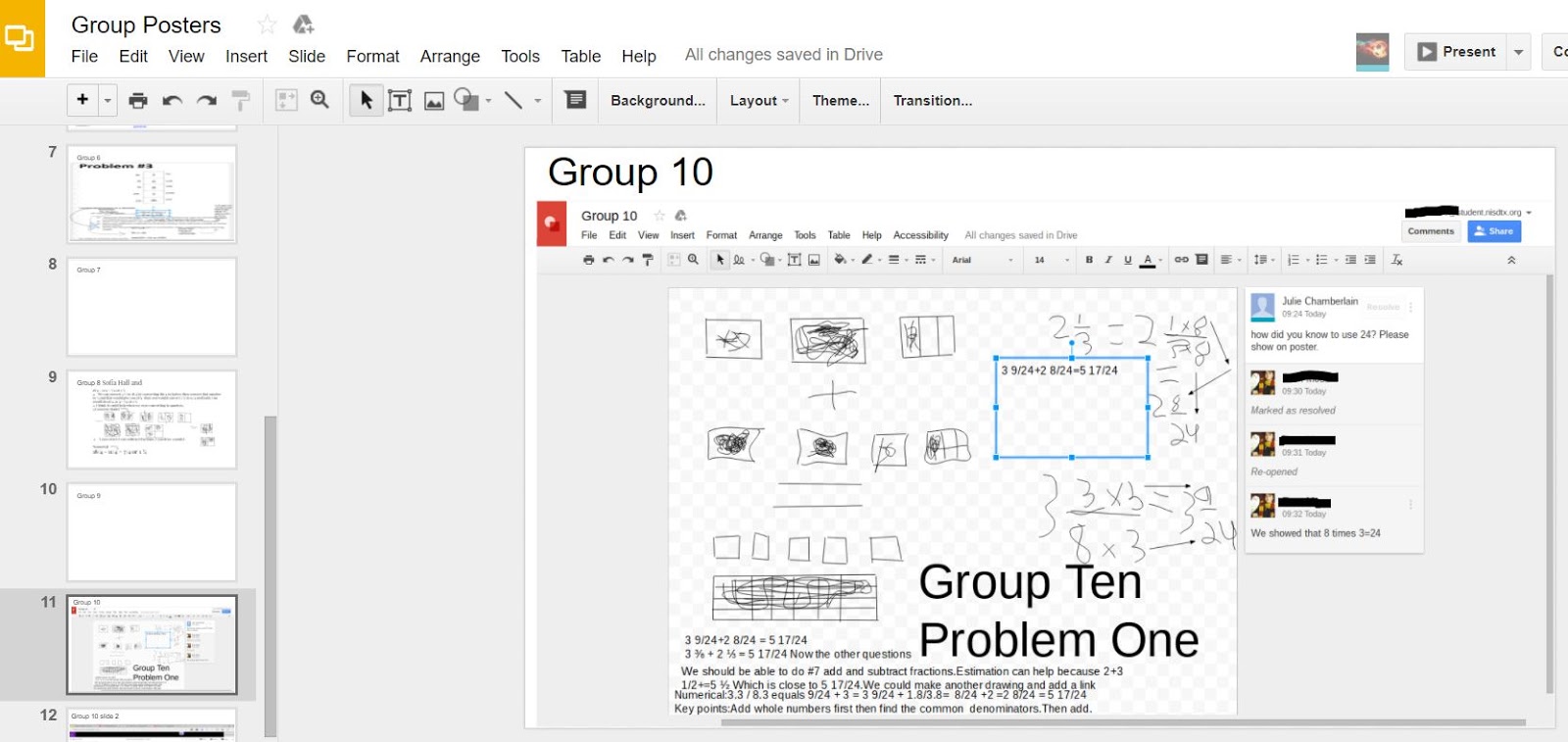
Recently, students were put into groups of two to create a visual math poster on fractions. Students used Google Draw to collaborate and show their thinking visually. Once visuals were created, students uploaded their drawings to a collaborative class Google Slide so that they could give and receive feedback as well as learn from other groups. According to Blane, "the group poster was exciting because I got to work with someone I have never worked with before."

Students in this class are learning to communicate and explain their thinking across a variety of platforms. They are learning how to interact via audio conference, text chat, visual graphics, etc. This class truly represents 21st century learning and encourages students to take ownership of their learning. They are encouraged to take risks as they work with students from other campuses. This class is just getting started and these students have a lot to accomplish before the end of the year!

Student ISTE Standards:
  • COMMUNICATION (1C): Students use technology to seek feedback that informs and improves their practice and to demonstrate their learning in a variety of ways.
  • CREATIVITY (4A): Students know and use a deliberate design process for generating ideas, testing theories, creating innovative artifacts or solving authentic problems.
  • CRITICAL THINKING (5C): Students break problems into component parts, extract key information, and develop descriptive models to understand complex systems or facilitate problem-solving.
  • COLLABORATION (7C): Students contribute constructively to project teams, assuming various roles and responsibilities to work effectively toward a common goal.

Monday, April 17, 2017

From Note Taking to Site Creating

Students work on their Science Sites
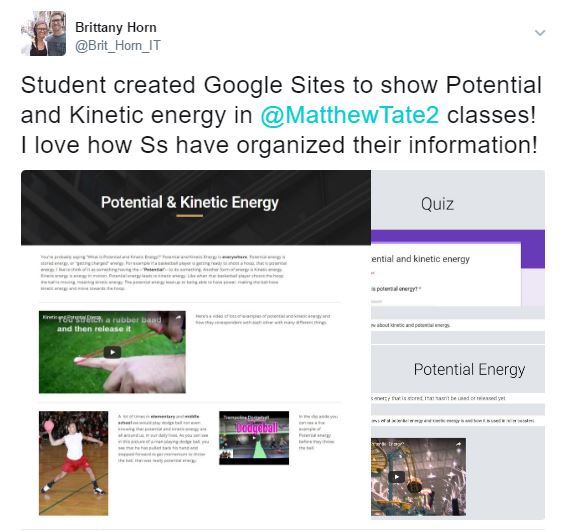
Tidwell Middle School 6th grade students are taking ownership of their learning as web designers in science. Mr. Anderson and Mr. Tate's classes were asked to create their own Google Site recapping learning from the year. This process allowed students to reflect on learned information, organize their thoughts within pages/sub pages, make their learning visual with pictures and GIFs, and share with others. Using a list of topics from the year, students got to choose which topics they wanted to explore in more detail. 

Two students, Yune and Kayla, learned a lot throughout this process and went above and beyond to make their site unique and effective. Yune points out, "I’ve learned a lot more about energy during this unit, because I have had to do my own research. It has opened my mind up to things that I haven’t thought about before." Kayla adds, “This was really fun because I got to learn how to design a website while I was reviewing the science I had learned." She adds, "I love keeping things organized, so this project helped me do that."

One aspect that both of these students learned was how to organize information in an effective way. Kayla states, "I had never heard of sub pages before. Sub pages are really helpful when you have a lot of information to put together." Students also learned about the importance of visuals and the impact that they can have. Mr. Anderson sent a Google Slides template to students to encourage them to identify types of energy and include a GIF or image that would show that specific energy type. "The GIFs are important for energy types because you can actually see the motion," claims Kayla.


When asked what was unique about their site, Yune responded, "I included a Google Form in my website for visitors to quiz themselves. At first I just listed questions, but during this project, Mr. Tate showed me how to create a Google Form." Kayla's site is unique in that she created it to look like a school yearbook. She even disguised her definitions page to resemble student quotes.


Designing a website requires research, organized thinking, visual learning, and allows students to personalize their work. "The plan is for students to take these sites with them as a living document that they can easily access, even after this year," stated Mr. Tate. He added, "I would have liked for students to leave each other feedback and expand their audience." Mr. Anderson showed the students how to add a feedback form to their site, so that they can start helping each other during the process later in the year. The Google Sites that have been created are only the beginning for these students!


Check out a few more student examples here: 
Student ISTE Standards:

  • 1b: Students build networks and customize their learning environments in ways that support the learning process.
  • 3c: Students communicate complex ideas clearly and effectively by creating or using a variety of digital objects such as visualizationsmodels or simulations.
  • 6b: Students create original works or responsibly repurpose or remix digital resources into new creations.
  • 6cStudents communicate complex ideas clearly and effectively by creating or using a variety of digital objects such as visualizationsmodels or simulations.

Monday, November 14, 2016

From Pages of Policy to Personal Practice


Students in Mrs. Wilsie's Tech Apps class at Tidwell Middle School were recently challenged with the task of not only understanding the nine page AUP (Acceptable Use Policy), but also working together to create a resource for other students that would help them understand and apply the AUP as well. Students started the unit by creating norms for group collaboration using Spider Scribe. Next, they used the Google Docs Outline tool to create an outline for the AUP as they broke it down into sections. According to Casen, narrowing down the information was one of the hardest parts. He comments, "At the beginning we felt overwhelmed because there were nine pages of the AUP and we had to use three types of multimedia to show how to follow it."

After understanding what the AUP entailed, students used the Tools that Make IT Click Blog to choose the platform they thought would best relay their information to other students.

A Screenshot of Masongo, Keller,
Madeline, and Logan's Blendspace.
Click HERE to View
When asked why her group chose to use Blendspace for their project, Madeline commented, "I was looking at Tools That Make IT Click and I really liked how Blendspace was orgnanized into boxes. We noticed that we could add links, pictures, and box off information off for our audience." Casen, Soniya, Benaiah, and Fatou decided to use Google Slides so that they could collaborate. They embedded videos, animation, and a Kahoot quiz so that students who viewed their presentation could test their knowledge. Maggie, Corbin, Jacob, and Blake created a newsletter using Tackk. They utilized the "button" feature in order to create a series of hyperlinks to send viewers to various student-created resources. Blake pointed out, "Our favorite part was the skit that we made about AUP. We used Screencastify to record our video."

After starting to work on their presentations, classes had the opportunity to connect with, and interview a few professionals via ZOOM. The video conference allowed students to see that the AUP is a part of the 'real world' and that it impacts adults in the workplace everyday. Students talked to Brooke, who works remotely with IBM in sales and Carrie, the Human Resources Director at Fidelity Investments.


After seeing the capabilities of ZOOM, one group decided use ZOOM to connect with each other even when they weren't all in class. Blake added, "ZOOM was easy to use and we were able to work even outside of class. I liked that you can message each other during the conference, so that we don’t interrupt each other."

At the end of the project, students used Google Forms to give their teammates a rating on collaboration and teamwork. They also shared their final product on a Padlet wall for the class to view and leave feedback.

Students walked away fom this experience with a clear understanding of the AUP and how to apply it to their daily digital lives. They also learned a lot about collaboration and teamwork. Maggie points out, "When we started as a group it wasn’t that smooth, but we got better as we worked together. Team work wasn’t easy at first." Casen sums up the unit by stating, " It would be helpful for other students to view our presentation. We made something that would benefit the whole school."

Monday, September 12, 2016

Making Our First Debut via YouTube


When Tidwell MS students signed up for theater, they didn't realize that they'd also be video stars! On the first day of school, student's in Mr Savell's Theater Class were tasked with a challenge. After watching a short video of a young girl explaining how to do Elsa make up, groups of students were given the choice of creating a YouTube video or Wiki How page on a concept related to theater. Their target audience was sixth grade students who needed to know more about theater tips. Submissions ranged from theater make-up and hair dos to rules of theater and stage fights. 


Mr. Savell wanted to assess student's prior knowledge with this activy, so created a few simple expectations. Students had to show:   

  • A clear understanding of what they already knew
  • That they could teach others in a clear manner
  • An organized and clear video
  • A Peer Evaluation


Karis, Trevor, and Mike created their video on how to do theater make up. This was fun for Karis becuase she got to show the right way to put on make up, while the boys showed the incorrect way. "We had to cooperate and step out of our comfort zone to get the video done," commented Mike. We were a little nervous about doing the video at first becuase it's hard to put yourself out there." Trevor added, "I learned that you can't be scared of your voice."

The group wanted to make sure that they taught their audience in a clear, but fun way. "As nervous as we were to do the video, it felt really good when everyone laughed as they watched our tutorial. They weren't laughing at us, they were laughing because our video was informative and funny. When we saw other's react, we realized that we had accomplished our goal." This was also a great way for students to get to know each other. Karis and Trevor mentioned that they didn't know Mike before this project, but they had a lot of fun getting to work together.


Karis was the video editor of the group and added, "I had used iMovie a little before, but I didn't really know that I could zoom, switch music tracks, and voice over." She explored details within the app in order to make sure that their video portrayed the right message.  

Mallory, Ashleigh, Kamille, and Madi created their video on how to create the Cinderella look. "I never thought I’d make a video in theater, but I loved it" commented Mallory. When asked what they learned through this process, Madi points out, "When we watched the YouTube video, it looked really simple, but when we started making one, we realized that we really had to think about the setting, props, and what we were going to say so that others would understand it."

All four girls had a different role in the video making process. Mallory did most of the editing and used iMovie on her iPhone. "I used iMovie so that I could mute out background noise and add voice over." Mallory mentioned that she has used iMovie with her friends before, but it was fun using it for an actual school project. "I also showed the video to my brother before turning it in to make sure that he could understand our steps," added Mallory.


Students filled out a peer evulation sheet that held everyone accountable to their video contributions. Kamille concluded, "Students should do this next year, because it was a great way to get to know each other, see what we had in common, and learn about communication."

Mallory, Madi, Kamille, and Ashleigh's Video


Karis, Trevor, and Mike's Video